

Separating the program’s UI from the implementation code of its methods is very helpful for improving development efficiency and code readability. Mainstream UI libraries such as Qt, wxWidgets, and GTK each have their own implementation approaches, which will be demonstrated below.
1. wxWidgets project based on XRC
1.1 Write XRC file
wxWidgets supports defining the UI through XML format and saving it as an XRC file. Using XRC files allows for separating the interface from the code, but the downside is that the released program will be slightly larger compared to the non-XRC version.
Below is an example of an XRC file from the official case1, which implements a dialog. Save it as resource.xrc.
<?xml version="1.0" ?>
<resource version="2.3.0.1">
  <object class="wxDialog" name="SimpleDialog">
    <title>Simple dialog</title>
    <object class="wxBoxSizer">
      <orient>wxVERTICAL</orient>
      <object class="sizeritem">
        <object class="wxTextCtrl" name="text"/>
        <option>1</option>
        <flag>wxALL|wxEXPAND</flag>
        <border>10</border>
      </object>
      <object class="sizeritem">
        <object class="wxBoxSizer">
          <object class="sizeritem">
            <object class="wxButton" name="clickme_btn">
              <label>Click</label>
            </object>
            <flag>wxRIGHT</flag>
            <border>10</border>
          </object>
          <object class="sizeritem">
            <object class="wxButton" name="wxID_OK">
              <label>OK</label>
            </object>
            <flag>wxLEFT</flag>
            <border>10</border>
          </object>
          <orient>wxHORIZONTAL</orient>
        </object>
        <flag>wxALL|wxALIGN_CENTRE</flag>
        <border>10</border>
      </object>
    </object>
  </object>
</resource>
wxWidgets was created quite early, and there are many RAD tools related to XRC. You can refer to the official wiki2 and choose the tool you prefer to assist with development.
1.2 Edit project file
Edit the main.cpp file as shown below to call this dialog through the main window. After initializing the XRC interface, use the XRCCTRL macro to access the windows and control classes within it and connect event handlers and callback functions.
// --- main.cpp ---

#include <wx/wx.h>
#include <wx/xrc/xmlres.h>

extern void InitXmlResource();

class MyFrame : public wxFrame
{
public:
    MyFrame(const wxString &title);
    void OnClickme(wxCommandEvent &event);
    void OnShowDialog(wxCommandEvent &event);
};

class MyApp : public wxApp
{
public:
    bool OnInit() override;
};

wxIMPLEMENT_APP(MyApp);

bool MyApp::OnInit()
{
    wxXmlResource::Get()->InitAllHandlers();
    InitXmlResource();
    MyFrame *frame = new MyFrame("Main Window");
    frame->Show(true);
    return true;
}

MyFrame::MyFrame(const wxString &title)
    : wxFrame(nullptr, wxID_ANY, title, wxDefaultPosition, wxSize(400, 300))
{
    // Create a panel to put the button on
    wxPanel *panel = new wxPanel(this);
    // Create a button to show the dialog
    wxButton *showDialogBtn = new wxButton(panel, wxID_ANY, "Show Dialog", wxPoint(150, 120));
    showDialogBtn->Bind(wxEVT_BUTTON, &MyFrame::OnShowDialog, this);
}

void MyFrame::OnShowDialog(wxCommandEvent &event)
{
    // Create and show the dialog if not already created
    wxDialog m_dialog;
    if (!wxXmlResource::Get()->LoadDialog(&m_dialog, this, "SimpleDialog"))
    {
        wxMessageBox("Failed to load dialog");
        return;
    }
    wxTextCtrl *pText = XRCCTRL(m_dialog, "text", wxTextCtrl);
    if (pText)
        pText->ChangeValue("This is a simple dialog");

    XRCCTRL(m_dialog, "clickme_btn", wxButton)->Bind(wxEVT_BUTTON, &MyFrame::OnClickme, this);
    m_dialog.ShowModal();
}

void MyFrame::OnClickme(wxCommandEvent &event)
{
    wxMessageBox("clickme_btn is clicked");
}
According to the official documentation3, the CMakeLists.txt file is written as follows. Using CMake to call wxrc, resource.xrc is compiled into a cpp file, which is then embedded into the released executable. This way, the final released program does not need to include the .xrc file. Of course, the cpp source code also needs to be adapted accordingly. Here, the compilation is done using the vcpkg toolchain, with the relevant parameters passed in through vcpkg.cmake.
# --- CMakeLists.txt ---

cmake_minimum_required(VERSION 3.21)
set(PROJECT_NAME "wxrc_sample")
project(${PROJECT_NAME} LANGUAGES CXX)
set(CMAKE_CXX_STANDARD 17)

include("${CMAKE_SOURCE_DIR}/vcpkg.cmake")

# find wxWidgets
find_package(wxWidgets CONFIG REQUIRED)

if(wxWidgets_USE_FILE) # not defined in CONFIG mode
  include(${wxWidgets_USE_FILE})
endif()

add_executable(${PROJECT_NAME} main.cpp)

# One or more XRC files containing your resources.
set(XRC_FILES ${CMAKE_CURRENT_SOURCE_DIR}/resource.xrc)

# Generate this file somewhere under the build directory.
set(RESOURCE_CPP ${CMAKE_CURRENT_BINARY_DIR}/resource.cpp)

# Not needed with the installed version, just use "wxrc".
find_program(WXRC
  NAMES wxrc
  PATHS "${wxWidgets_TOOLS_PATH}"
  REQUIRED)
message(STATUS "WXRC: ${WXRC}")

add_custom_command(
  OUTPUT ${RESOURCE_CPP}
  COMMAND ${WXRC} -c -o ${RESOURCE_CPP} ${XRC_FILES}
  DEPENDS ${XRC_FILES}
  DEPENDS ${WXRC}
  COMMENT "Compiling XRC resources"
)

target_sources(${PROJECT_NAME} PRIVATE ${RESOURCE_CPP})

if(MSVC)
  set_target_properties(${PROJECT_NAME} PROPERTIES LINK_FLAGS "/SUBSYSTEM:WINDOWS")

  # using /MT and /MTd link flags
  if(VCPKG_TARGET_TRIPLET MATCHES "static")
    set_property(TARGET ${PROJECT_NAME} PROPERTY
      MSVC_RUNTIME_LIBRARY "MultiThreaded$<$<CONFIG:Debug>:Debug>")
  endif()
endif()

if(wxWidgets_LIBRARIES EQUAL "")
  message(STATUS "wxWidgets_LIBRARIES is empty!")
  set(wxWidgets_LIBRARIES wx::core wx::base wx::xrc)
endif()

target_link_libraries(${PROJECT_NAME} ${wxWidgets_LIBRARIES})

# set installation directories
install(TARGETS ${PROJECT_NAME}
  BUNDLE DESTINATION bin
  RUNTIME DESTINATION bin
)

# install runtime dependencies
install(CODE [[
include("${CMAKE_SOURCE_DIR}/vcpkg.cmake")
file(GET_RUNTIME_DEPENDENCIES
    RESOLVED_DEPENDENCIES_VAR RESOLVED_DEPS
    UNRESOLVED_DEPENDENCIES_VAR UNRESOLVED_DEPS
    EXECUTABLES $<TARGET_FILE:wxrc_sample>
    DIRECTORIES "${wxWidgets_BIN_PATH}"
    PRE_EXCLUDE_REGEXES "system32"
    PRE_EXCLUDE_REGEXES "api-ms-*"
    POST_EXCLUDE_REGEXES "system32"
)
foreach(DEP_LIB ${RESOLVED_DEPS})
    file(INSTALL ${DEP_LIB} DESTINATION ${CMAKE_INSTALL_PREFIX}/bin)
endforeach()
]])
Because CMake’s generator expression $<TARGET_FILE:...> cannot capture variables, it can only be written as $<TARGET_FILE:wxrc_sample>, which somewhat affects code reusability. The code block defined by CMake’s install(CODE) cannot capture external variables, so variables for search paths need to be passed through vcpkg.cmake. Of course, you could also directly write absolute paths, but this would reduce code reusability, and every time the toolchain is updated, it would require manually changing the paths, which is very inconvenient.
Here, the relevant variables are separated into the vcpkg.cmake file. You only need to modify the VCPKG_PATH and VCPKG_TARGET_TRIPLET variables in the vcpkg.cmake file before compilation to specify the vcpkg toolchain.
# --- vcpkg.cmake ---

# set vcpkg path and triplet
set(VCPKG_PATH "D:/vcpkg/vcpkg")
set(VCPKG_TARGET_TRIPLET "x64-windows")

# set vcpkg bin path
set(VCPKG_BIN_PATH "${VCPKG_PATH}/installed/${VCPKG_TARGET_TRIPLET}/bin")

# using vcpkg toolchain
set(CMAKE_TOOLCHAIN_FILE "${VCPKG_PATH}/scripts/buildsystems/vcpkg.cmake")

# set wxSidgets and NanoSVG search path
set(wxWidgets_DIR "${VCPKG_PATH}/installed/${VCPKG_TARGET_TRIPLET}/share/wxWidgets")
set(NanoSVG_DIR "${VCPKG_PATH}/installed/${VCPKG_TARGET_TRIPLET}/share/NanoSVG")

# set wxWidget tools path
set(wxWidgets_TOOLS_PATH "${VCPKG_PATH}/installed/${VCPKG_TARGET_TRIPLET}/tools/wxwidgets")
set(wxWidgets_BIN_PATH "${VCPKG_PATH}/installed/${VCPKG_TARGET_TRIPLET}/bin")
It might be a version issue. vcpkg can’t find the paths for wxWidgets and its dependent NanoSVG, so they have to be specified manually. I haven’t encountered this problem with conda or msys2.
1.3 编译及发布
The following command compiles and publishes the release version, automatically copying the wxWidgets-dependent DLLs to the executable file directory during publishing.
cmake -B build .
cmake --build build --config Release
cmake --install build --config Release --prefix $PWD/install

The above describes the process of compiling and releasing wxWidgets dynamic link library versions. If you don’t want to release them along with a bunch of dynamic libraries, you can consider using static library compilation. This way, you can directly generate a standalone executable and avoid the release process. The wxWidgets license4 is relatively permissive, so using static libraries does not raise concerns about commercial closed-source issues.
It should be noted that when using the x64-windows-static target toolchain on vcpkg for static library compilation, you need to change the MSVC linker’s runtime library from /MD to /MT. This setting is already included in the CMakeLists.txt configuration file in version 1.2.
2. GTK4 project based on Glade
2.1 使用glade编辑gtk界面
Similar to XRC in wxWidgets, GTK also supports defining UI interfaces in XML, which can be loaded using the GtkBuilder5 module. Currently, the known RAD tool for GTK is mainly Glade6. The latest version 3.40.0 only supports outputting UI files for GTK3, so the Glade output UI files need to be converted to the GTK4 version using the GTK4 command-line tool7.
We can use Glade to design the interface of a GTK program and then save it as gtk3_ui.glade.

Use gtk-builder-tool to convert GTK3 version UI files to GTK4 version.
gtk4-builder-tool simplify --3to4 gtk3_ui.glade >> gtk4_ui.glade
Below is the content of the converted gtk4_ui.glade file. Generally, please do not edit it manually. It is recommended to use Glade to edit the interface and then convert it using the gtk-builder-tool.
<?xml version="1.0" encoding="UTF-8"?>
<interface>
  <object id="window" class="GtkWindow">
    <property name="title">Grid</property>
    <child>
      <object id="grid" class="GtkGrid">
        <child>
          <object id="button1" class="GtkButton">
            <property name="label">Button 1</property>
            <layout>
              <property name="column">0</property>
              <property name="row">0</property>
            </layout>
          </object>
        </child>
        <child>
          <object id="button2" class="GtkButton">
            <property name="label">Button 2</property>
            <layout>
              <property name="column">1</property>
              <property name="row">0</property>
            </layout>
          </object>
        </child>
        <child>
          <object id="quit" class="GtkButton">
            <property name="label">Quit</property>
            <layout>
              <property name="column">0</property>
              <property name="row">1</property>
              <property name="column-span">2</property>
            </layout>
          </object>
        </child>
      </object>
    </child>
  </object>
</interface>
2.2 Write resource files
GTK supports embedding UI files into the executable as resource files. You need to write a resource file and then use the glib-compile-resources command-line tool to compile the resource file into a C source file.
Below is the resource file resources.xml, which is also in XML format. Besides UI files, other files like text files and images can also be embedded into the program through resource files. The advantage of this approach is obvious: the final released program doesn’t need to carry a bunch of resource files around.
<?xml version="1.0" encoding="UTF-8"?>
<gresources>
  <gresource prefix="/org/gtk/glade">
    <file preprocess="xml-stripblanks">gtk4_ui.glade</file>
  </gresource>
</gresources>
2.3 Write project files
Write a C source file and define how to call the UI file.
// --- main.c ---

#include <gtk/gtk.h>
#include <glib/gstdio.h>

static void
print_hello(GtkWidget *widget,
            gpointer data)
{
  GtkWidget *parent_window = gtk_widget_get_parent(widget);
  GtkAlertDialog *dialog = gtk_alert_dialog_new("Hello World!");
  gtk_alert_dialog_set_modal(dialog, TRUE);
  gtk_alert_dialog_show(dialog, GTK_WINDOW(parent_window));
  // g_print ("Hello World\n");
}

static void
quit_cb(GtkWindow *window)
{
  gtk_window_close(window);
}

static void
activate(GtkApplication *app,
         gpointer user_data)
{
  /* Construct a GtkBuilder instance and load our UI description */
  GtkBuilder *builder = gtk_builder_new();
  gtk_builder_add_from_resource(builder, "/org/gtk/glade/gtk4_ui.glade", NULL);
  // gtk_builder_add_from_file (builder, "gtk4_ui.glade", NULL);

  /* Connect signal handlers to the constructed widgets. */
  GObject *window = gtk_builder_get_object(builder, "window");
  gtk_window_set_application(GTK_WINDOW(window), app);

  GObject *button = gtk_builder_get_object(builder, "button1");
  g_signal_connect(button, "clicked", G_CALLBACK(print_hello), NULL);

  button = gtk_builder_get_object(builder, "button2");
  g_signal_connect(button, "clicked", G_CALLBACK(print_hello), NULL);

  button = gtk_builder_get_object(builder, "quit");
  g_signal_connect_swapped(button, "clicked", G_CALLBACK(quit_cb), window);

  gtk_window_present(GTK_WINDOW(window));

  /* We do not need the builder any more */
  g_object_unref(builder);
}

int main(int argc,
         char *argv[])
{
#ifdef GTK_SRCDIR
  g_chdir(GTK_SRCDIR);
#endif

  GtkApplication *app = gtk_application_new("org.gtk.example", G_APPLICATION_DEFAULT_FLAGS);
  g_signal_connect(app, "activate", G_CALLBACK(activate), NULL);

  int status = g_application_run(G_APPLICATION(app), argc, argv);
  g_object_unref(app);

  return status;
}
Automatically call glib-compile-resources in the CMakeLists.txt file to compile the resource file resources.xml into a C file. Here, vcpkg is being used.
# --- CMakeLists.txt ---

cmake_minimum_required(VERSION 3.21)
set(PROJECT_NAME glade_gtk4_sample)
project(${PROJECT_NAME} LANGUAGES C)
set(CMAKE_C_STANDARD 11)

set(SRC_LIST main.c)
include(${CMAKE_SOURCE_DIR}/vcpkg.cmake)

find_package(PkgConfig REQUIRED)
pkg_check_modules(GTK REQUIRED gtk4)

include_directories(${GTK_INCLUDE_DIRS})
link_directories(${GTK_LIBRARY_DIRS})
find_program(GLIB_COMPILE_RESOURCES
    PATHS ${GLIB_TOOL_BIN_PATH}
    NAMES glib-compile-resources REQUIRED)
set(GRESOURCE_C resources.c)
set(GRESOURCE_XML resources.xml)
set(GRESOURCE_DEPENDENCIES gtk4_ui.glade)
add_custom_command(
    OUTPUT ${GRESOURCE_C}
    WORKING_DIRECTORY ${CMAKE_CURRENT_SOURCE_DIR}
    COMMAND ${GLIB_COMPILE_RESOURCES}
    ARGS
    --generate-source
    --target=${CMAKE_CURRENT_BINARY_DIR}/${GRESOURCE_C}
    ${GRESOURCE_XML}
    VERBATIM
    MAIN_DEPENDENCY ${GRESOURCE_XML}
    DEPENDS ${GRESOURCE_DEPENDENCIES}
)
add_custom_target(
    glib-resource
    DEPENDS ${CMAKE_CURRENT_BINARY_DIR}/${GRESOURCE_C}
)

add_executable(${PROJECT_NAME}
    ${SRC_LIST}
    ${CMAKE_CURRENT_BINARY_DIR}/${GRESOURCE_C}
)

if(MSVC)
    set_target_properties(${PROJECT_NAME} PROPERTIES LINK_FLAGS "/SUBSYSTEM:WINDOWS /entry:mainCRTStartup")
endif()

add_dependencies(${PROJECT_NAME} glib-resource)

target_link_libraries(${PROJECT_NAME} ${GTK_LIBRARIES})

include(GNUInstallDirs)
install(TARGETS ${PROJECT_NAME}
    BUNDLE DESTINATION bin
    LIBRARY DESTINATION ${CMAKE_INSTALL_LIBDIR}
    RUNTIME DESTINATION ${CMAKE_INSTALL_BINDIR}
)

# install runtime dependencies
install(CODE [[
include(${CMAKE_SOURCE_DIR}/vcpkg.cmake)
file(GET_RUNTIME_DEPENDENCIES
    RESOLVED_DEPENDENCIES_VAR RESOLVED_DEPS
    UNRESOLVED_DEPENDENCIES_VAR UNRESOLVED_DEPS
    # path to the executable files
    EXECUTABLES $<TARGET_FILE:glade_gtk4_sample>
    # directories to search for library files
    DIRECTORIES ${IMPORT_BIN_PATH}
    PRE_EXCLUDE_REGEXES "system32"
    PRE_EXCLUDE_REGEXES "api-ms-*"
    POST_EXCLUDE_REGEXES "system32"
)
foreach(DEP_LIB ${RESOLVED_DEPS})
    file(INSTALL ${DEP_LIB} DESTINATION ${CMAKE_INSTALL_PREFIX}/bin)
endforeach()
set(GTK_SEARCH_DIRS ${IMPORT_PATH})
set(GTK_SUB_DIRS "lib" "etc" "share")
set(SUB_DIR_PEN "gtk-4" "glib-2" "gdk" "themes" "icons")
foreach(SUB_DIR ${GTK_SUB_DIRS})
    foreach(PEN_DIR ${SUB_DIR_PEN})
        file(GLOB DIRECTORIES LIST_DIRECTORIES true RELATIVE "${GTK_SEARCH_DIRS}/${SUB_DIR}" "${GTK_SEARCH_DIRS}/${SUB_DIR}/*${PEN_DIR}*")
        foreach(DIR ${DIRECTORIES})
            if(IS_DIRECTORY "${GTK_SEARCH_DIRS}/${SUB_DIR}/${DIR}")
                file(INSTALL "${GTK_SEARCH_DIRS}/${SUB_DIR}/${DIR}" DESTINATION "${CMAKE_INSTALL_PREFIX}/${SUB_DIR}")
            endif()
        endforeach()
    endforeach()
endforeach()
]])
vcpkg is invoked as defined in the module vcpkg.cmake.
# --- vcpkg.cmake ---

# set vcpkg path and triplet
set(VCPKG_PATH "D:/vcpkg/vcpkg")
message(STATUS "VCPKG PATH: " ${VCPKG_PATH})
set(VCPKG_TARGET_TRIPLET "x64-windows")
message(STATUS "VCPKG TARGET TRIPLET: " ${VCPKG_TARGET_TRIPLET})

# using vcpkg toolchain
set(CMAKE_TOOLCHAIN_FILE "${VCPKG_PATH}/scripts/buildsystems/vcpkg.cmake")

set(PKG_CONFIG_EXECUTABLE "${VCPKG_PATH}/installed/${VCPKG_TARGET_TRIPLET}/tools/pkgconf/pkgconf.exe")
set(ENV{PKG_CONFIG_PATH} "${VCPKG_PATH}/installed/${VCPKG_TARGET_TRIPLET}/lib/pkgconfig")
message(STATUS "VCPKG PKGCONFIG PATH: " $ENV{PKG_CONFIG_PATH})

# set search path
set(IMPORT_PATH "${VCPKG_PATH}/installed/${VCPKG_TARGET_TRIPLET}")
message(STATUS "IMPORT PATH: " ${IMPORT_PATH})
set(IMPORT_BIN_PATH "${IMPORT_PATH}/bin")
message(STATUS "IMPORT BIN PATH: " ${IMPORT_BIN_PATH})
set(GLIB_TOOL_BIN_PATH "${IMPORT_PATH}/tools/glib")
message(STATUS "GLIB TOOL BIN PATH: " ${GLIB_TOOL_BIN_PATH})
Of course, you can also define a mingw.cmake module. When compiling with msys2, you just need to replace vcpkg.cmake with the mingw.cmake module.
# --- mingw.cmake ---

set(CMAKE_C_FLAGS "-mwindows")

# set search path
find_program(GLIB_COMPILE_RESOURCES NAMES glib-compile-resources REQUIRED)
message(STATUS "GLIB RESOURCE TOOL: " ${GLIB_COMPILE_RESOURCES})
cmake_path(GET GLIB_COMPILE_RESOURCES PARENT_PATH IMPORT_BIN_PATH)
message(STATUS "IMPORT BIN PATH: " ${IMPORT_BIN_PATH})
cmake_path(GET IMPORT_BIN_PATH PARENT_PATH IMPORT_PATH)
message(STATUS "IMPORT PATH: " ${IMPORT_PATH})
set(GLIB_TOOL_BIN_PATH "${IMPORT_PATH}/bin")
message(STATUS "GLIB TOOL BIN PATH: " ${GLIB_TOOL_BIN_PATH})
Here I want to vent a bit about CMake. Inside the install(CODE) command, you can’t access external variables, and you also can’t use if()...else() for logic. What’s worse, the same code behaves completely differently in the terminal and in the VSCode extension CMake Tools…
2.4 Compilation and Release
The command lines for compiling and releasing with MinGW and vcpkg are the same, and compilation, release, and installation have been verified successfully in the terminal. Using the VSCode extension CMake Tools to compile does not produce errors, but errors occur during release and installation.
cmake -B build .
cmake --build build --config Release
cmake --install build --config Release --prefix $PWD/install
Further criticizing GTK4, ever since GtkMessageDialog was deprecated, the new GtkAlertDialog has not been properly developed, and even the most basic dialog display is not functioning well. The GTK4 API changes constantly, and it is sincerely not recommended for use in projects.
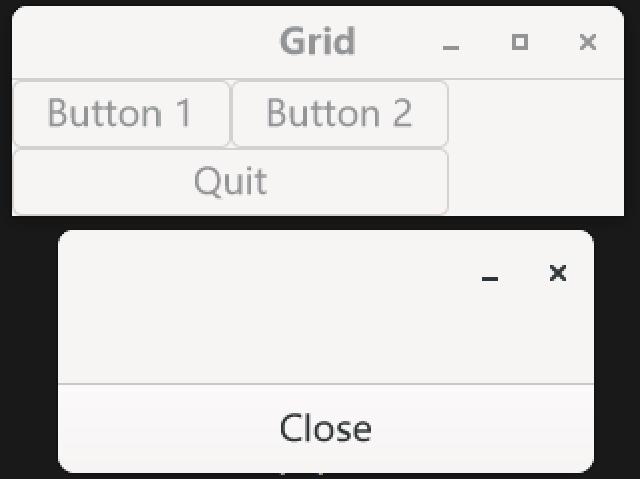
GTK uses the LGPL license and primarily supports dynamic library versions, which means that when releasing GTK applications on Windows, one has to include a number of dynamic libraries. On Linux, however, this is not an issue, as GTK holds a position on Linux similar to that of the Win32 API on Windows.
3. Qt6 Project Based on QML
3.1 Create Project File
In fact, Qt provides two ways to define a UI. One is the traditional widget approach, using the Qt Designer tool to define a UI file, which is then compiled into a C++ source file through uic. This is similar to manually implementing the interface in C++, except that it is wrapped and converted by a RAD tool. The other approach is QML, which Qt has strongly promoted and is the topic of this chapter. It uses a specialized declarative language to develop interfaces, which are rendered through QtQuick. The former is suitable for traditional desktop application development, while the latter extends support to mobile platforms. As for the QML language itself, it will not be discussed in detail here, and you can refer to the official documentation8 for more information.
To quickly create a QML project, you can use Qt’s official IDE tool, Qt Creator, to create a Qt Quick application and complete the project setup quickly by following the wizard prompts.

At this point, the project folder has already generated QML files, C++ entry files, and CMake configuration files.
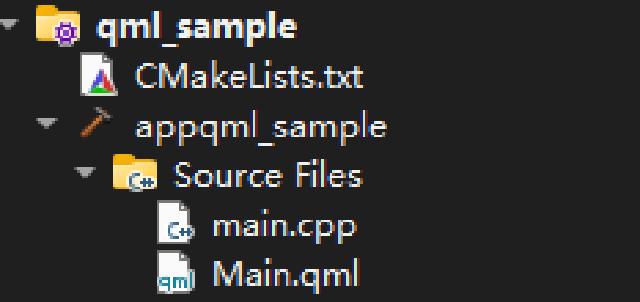
The content of the C++ entry file main.cpp is automatically generated.
// --- main.cpp ---

#include <QGuiApplication>
#include <QQmlApplicationEngine>
int main(int argc, char *argv[])
{
    QGuiApplication app(argc, argv);
    QQmlApplicationEngine engine;
    QObject::connect(
        &engine,
        &QQmlApplicationEngine::objectCreationFailed,
        &app,
        []()
        { QCoreApplication::exit(-1); },
        Qt::QueuedConnection);
    engine.loadFromModule("qml_sample", "Main");
    return app.exec();
}
3.2 Edit QML Interface File
The automatically generated QML file Main.qml is essentially blank. Modify it as follows to add a label and a button, where pressing the button changes the label’s content.
import QtQuick 2.15
import QtQuick.Controls 2.15

ApplicationWindow {
    visible: true
    width: 400
    height: 300
    title: "QML Example"
    // Centered layout
    Column {
        anchors.centerIn: parent
        spacing: 20
        // Label to display text
        Label {
            id: messageLabel
            text: "Hello, QML!"
            font.pixelSize: 20
            horizontalAlignment: Text.AlignHCenter
        }
        // Button to change label text
        Button {
            text: "Click Me"
            onClicked: {
                messageLabel.text = "Button Clicked!";
            }
        }
    }
}
3.3 Modify the CMake script
Modify the contents of the CMakeLists.txt file to add scripts for automatic deployment and copying of dependencies. The QML application deployment9 uses the qt_generate_deploy_qml_app_script script, which is different from widget applications and requires special attention.
# --- CMakeLists.txt ---

cmake_minimum_required(VERSION 3.21)
set(PROJECT_NAME qml_sample)
set(EXECUTE_NAME "${PROJECT_NAME}_app")
project(${PROJECT_NAME} VERSION 0.1 LANGUAGES CXX)
set(CMAKE_CXX_STANDARD_REQUIRED ON)

set(CMAKE_INSTALL_PREFIX "${CMAKE_SOURCE_DIR}/install")

include(${CMAKE_SOURCE_DIR}/vcpkg.cmake)

find_package(Qt6 REQUIRED COMPONENTS Quick)

qt_standard_project_setup(REQUIRES 6.8)
qt_add_executable(${EXECUTE_NAME}
    main.cpp
)
qt_add_qml_module(${EXECUTE_NAME}
    URI ${PROJECT_NAME}
    VERSION 1.0
    QML_FILES
    Main.qml
)

set_target_properties(${EXECUTE_NAME} PROPERTIES
    MACOSX_BUNDLE_BUNDLE_VERSION ${PROJECT_VERSION}
    MACOSX_BUNDLE_SHORT_VERSION_STRING ${PROJECT_VERSION_MAJOR}.${PROJECT_VERSION_MINOR}
    MACOSX_BUNDLE TRUE
    WIN32_EXECUTABLE TRUE
)

target_link_libraries(${EXECUTE_NAME}
    PRIVATE Qt6::Quick
)

include(GNUInstallDirs)
install(TARGETS ${EXECUTE_NAME}
    BUNDLE DESTINATION .
    LIBRARY DESTINATION ${CMAKE_INSTALL_LIBDIR}
    RUNTIME DESTINATION ${CMAKE_INSTALL_BINDIR}
)

set(deploy_tool_options_arg "")

if(APPLE)
    set(deploy_tool_options_arg --hardened-runtime)
elseif(WIN32)
    set(deploy_tool_options_arg --no-compiler-runtime)
endif()

qt_generate_deploy_qml_app_script(
    TARGET ${EXECUTE_NAME}
    OUTPUT_SCRIPT deploy_script
    MACOS_BUNDLE_POST_BUILD
    NO_UNSUPPORTED_PLATFORM_ERROR
    DEPLOY_USER_QML_MODULES_ON_UNSUPPORTED_PLATFORM
    DEPLOY_TOOL_OPTIONS ${deploy_tool_options_arg}
)

install(SCRIPT ${deploy_script})

install(CODE [[
include(${CMAKE_SOURCE_DIR}/vcpkg.cmake)
file(GET_RUNTIME_DEPENDENCIES
    RESOLVED_DEPENDENCIES_VAR RESOLVED_DEPS
    UNRESOLVED_DEPENDENCIES_VAR UNRESOLVED_DEPS
    # path to the executable files
    EXECUTABLES $<TARGET_FILE:qml_sample_app>
    # directories to search for library files
    DIRECTORIES ${IMPORT_BIN_PATH}
    PRE_EXCLUDE_REGEXES "system32"
    PRE_EXCLUDE_REGEXES "api-ms-*"
    POST_EXCLUDE_REGEXES "system32"
)
foreach(DEP_LIB ${RESOLVED_DEPS})
    file(INSTALL ${DEP_LIB} DESTINATION ${CMAKE_INSTALL_PREFIX}/bin)
endforeach()
]])
For the purpose of script reuse, the vcpkg.cmake file is introduced here, and the vcpkg path is defined uniformly in this location.
# --- vcpkg.cmake ---

# set vcpkg path and triplet
set(VCPKG_PATH "D:/vcpkg/vcpkg")
message(STATUS "VCPKG PATH: " ${VCPKG_PATH})
set(VCPKG_TARGET_TRIPLET "x64-windows")
message(STATUS "VCPKG TARGET TRIPLET: " ${VCPKG_TARGET_TRIPLET})

# using vcpkg toolchain
set(CMAKE_TOOLCHAIN_FILE "${VCPKG_PATH}/scripts/buildsystems/vcpkg.cmake")

set(Qt6_DIR "${VCPKG_PATH}/installed/${VCPKG_TARGET_TRIPLET}/share/qt6")

# set search path
set(IMPORT_PATH "${VCPKG_PATH}/installed/${VCPKG_TARGET_TRIPLET}")
message(STATUS "IMPORT PATH: " ${IMPORT_PATH})
set(IMPORT_BIN_PATH "${IMPORT_PATH}/bin")
message(STATUS "IMPORT BIN PATH: " ${IMPORT_BIN_PATH})
set(GLIB_TOOL_BIN_PATH "${IMPORT_PATH}/tools/glib")
message(STATUS "GLIB TOOL BIN PATH: " ${GLIB_TOOL_BIN_PATH})
3.4 Compilation and Release
The commands for compiling and publishing are the same. It is preferable to run the publishing process in the terminal command line, as publishing through the VSCode ‘CMake Tools’ extension always fails.
cmake -B build .
cmake --build build --config Release
cmake --install build --config Release --prefix $PWD/install

The above only considers the compilation and distribution of the Qt6 dynamic library version. Qt6 uses the LGPL license, which means that if a commercial version has not been purchased, the program must be distributed together with a set of dynamic libraries.
Qt is increasingly focusing on support for QML, while support for traditional widgets is gradually declining. If time and resources permit, it is advisable to transition to QML.
4. Summary
Qt6 offers the most comprehensive functionality and is also the largest and most complex of the three. Updates are relatively aggressive, the source code is extensive and complicated, and compiling it can be quite a challenge. Programs built with Qt6 also have the largest file sizes among the three. It provides full support for compilers and toolchains, has its own IDE and RAD tools, and boasts the highest development efficiency of the three.
wxWidgets is the most traditional and also relatively complete in functionality, with fairly comprehensive RAD tools. Source code updates are relatively slow, the API is quite stable, and support for cross-platform development and toolchains is also well-established. Importantly, its license is relatively permissive, avoiding commercial copyright disputes, which may explain why it has remained resilient over the years.
gtk4 feels somewhat indecisive, relying on too many fragmented components without forming a cohesive system. Although its source code updates are not as slow as wxWidgets’, it gives the impression of stagnation, lacking a comprehensive development plan. Its build tools are very outdated and hard to meet the demands of modern large-scale project development. This is not due to any prejudice against pkg-config and autoconf, but rather because these tools are designed specifically for Linux, and their cross-platform development efficiency is quite frustrating.